← All tutorials · Soundscape Atlas
Tutorial 7 of 7
Scenes in a shared workspace
Intermediate 5 min
Save a Soundscape Atlas scene to a team workspace, mix layers together live while it plays, and let viewers listen without changing the scene.
Soundscape Atlas works without an account. When a team builds an ambience together, for a game, a podcast or a classroom, save the scene to a shared workspace: everyone opens the same scene, hears changes live, and viewers can listen without changing anything.
Save a scene to a workspace
- Open the scene you want to share.
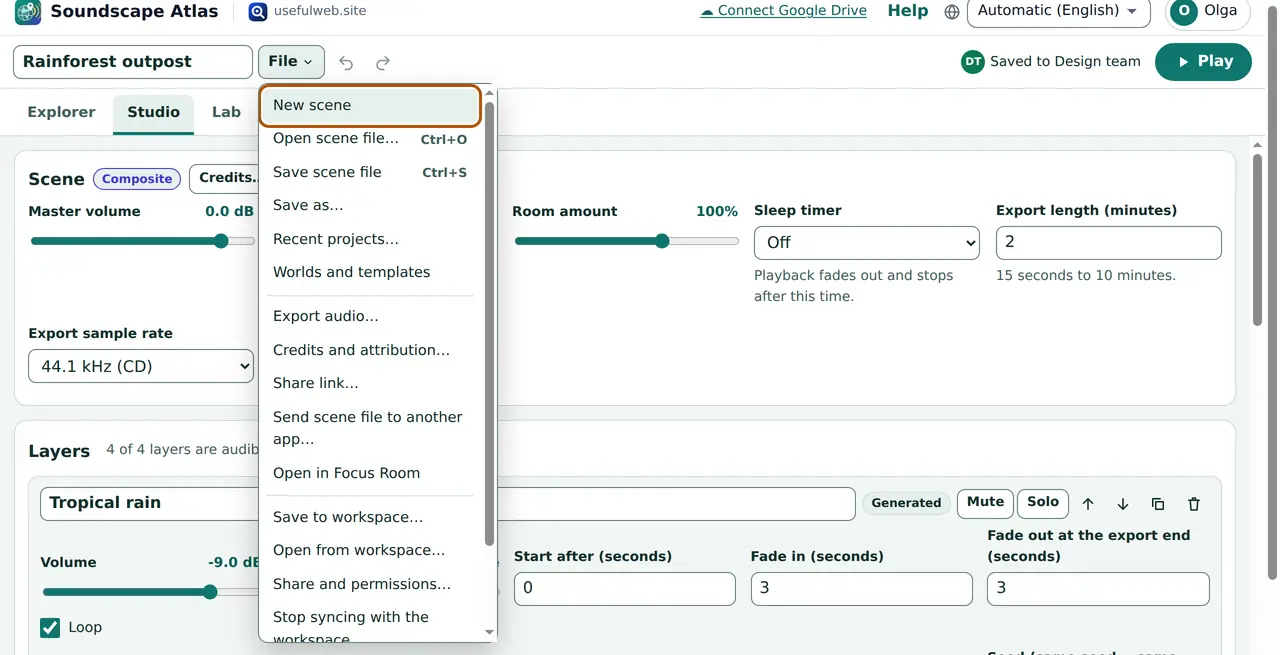
- Choose File → Save to workspace…. Sign in with a passkey (or Google) if you have not yet, then pick a workspace or create one.
- Check the title and press Save.
The whole scene becomes one document in the workspace: layers, automation, room, saved recordings, soundwalks and the Sound Lab settings. The status bar shows the workspace, the save state and the people who have the same scene open right now. From now on every change is saved to the workspace a moment after you make it.
Invite your team and open shared scenes
Choose File → Share and permissions… to create invite links with a role (member, viewer or guest), to limit who may open or change this scene, and to copy its direct link. A direct link ends in #teamdoc= and opens the scene for everyone who has access.
Team members find every shared scene under File → Open from workspace…, with a filter by title.
Working together live
When a teammate saves a change, it appears in your copy within a second or two and the status line names who made it. Playback keeps running while the update arrives. If two people change the scene at the same moment, Soundscape Atlas asks whether to load their version, keep yours or save yours as a copy.
Viewers see, but do not change
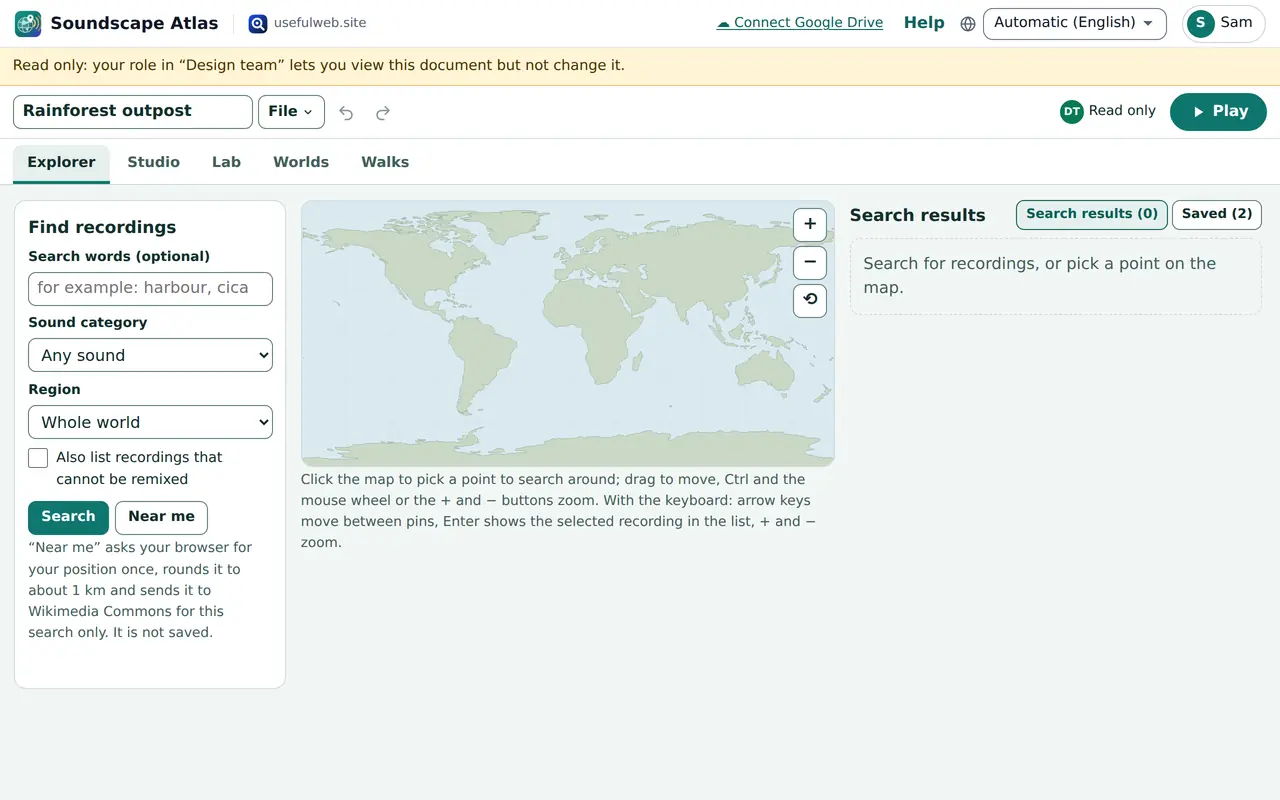
People with the viewer role get a yellow read-only note at the top and Read only in the status chip. They can still press Play, explore recordings, listen to soundwalks and export audio. Every change is refused with a short message, and the server refuses it too.
What is not shared
Recordings from Wikimedia Commons are stored as references, so every teammate hears them. Audio files you imported from your own device stay in this browser: teammates hear the other layers, and the imported layer reports that its audio is not available on their device.
Stop syncing
File → Stop syncing with the workspace keeps the current state as a normal scene in this browser; the shared copy stays in the workspace for everyone else. Opening another scene, a template or a file also stops syncing. While you stay signed in, the shared scene opens again the next time you start the app.
Ready to try it?